Shopify API Setup
Follow this guide to provision Shopify API credentials so we can keep your Local Leo catalog in sync with your Shopify store.
Important: You'll need admin access to your Shopify store to complete these steps.
Step 1: Access Shopify Developer Dashboard
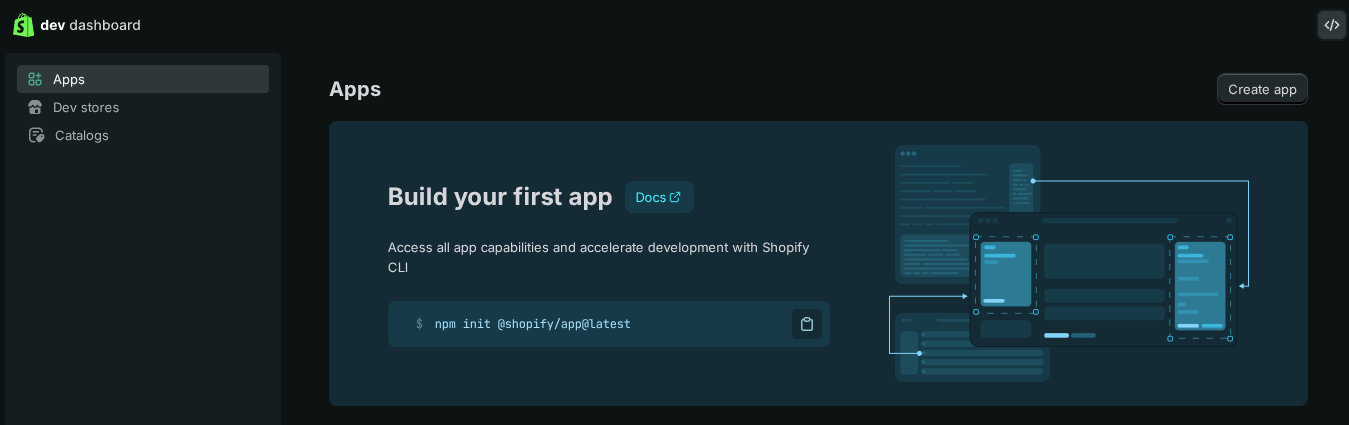
- Log in to the Shopify Developer dashboard
- Select "Create app" from the top right-hand corner
Step 2: Create a Custom App
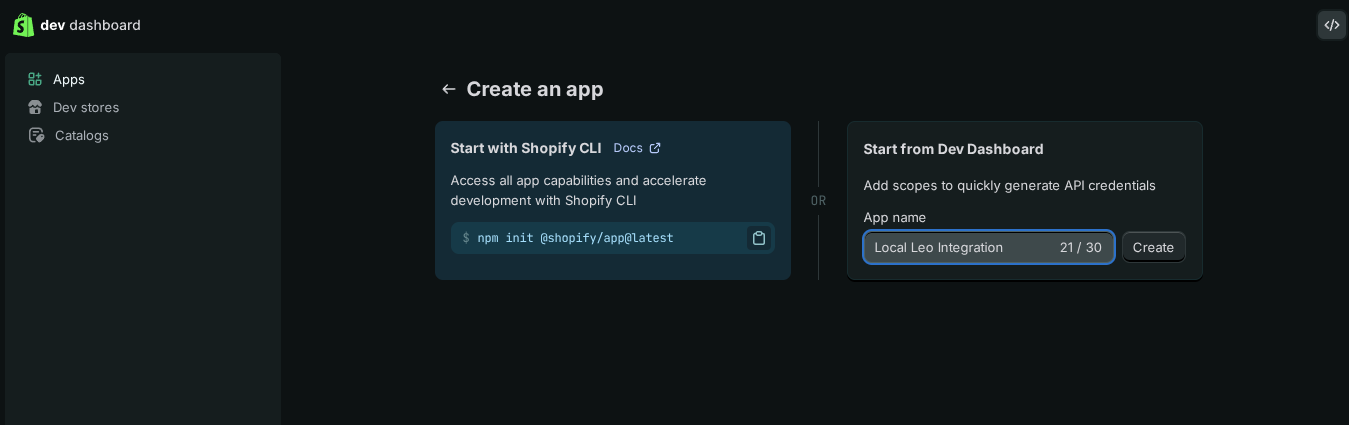
- Enter an app name (e.g., "Local Leo Integration")
- Click "Create"
Step 3: Configure API Scopes
You'll need to configure the appropriate API scopes to allow Local Leo to sync your catalog:
- On the app page scroll down to "Access" and under "Scopes" paste the following scopes(Alternatively you can click the "Select scopes" button and choose them manually)
read_price_rules,read_discounts,write_inventory,read_inventory,read_locales,read_metaobject_definitions,read_metaobjects,read_online_store_navigation,read_product_listings,read_products,read_publications,read_content,read_translations
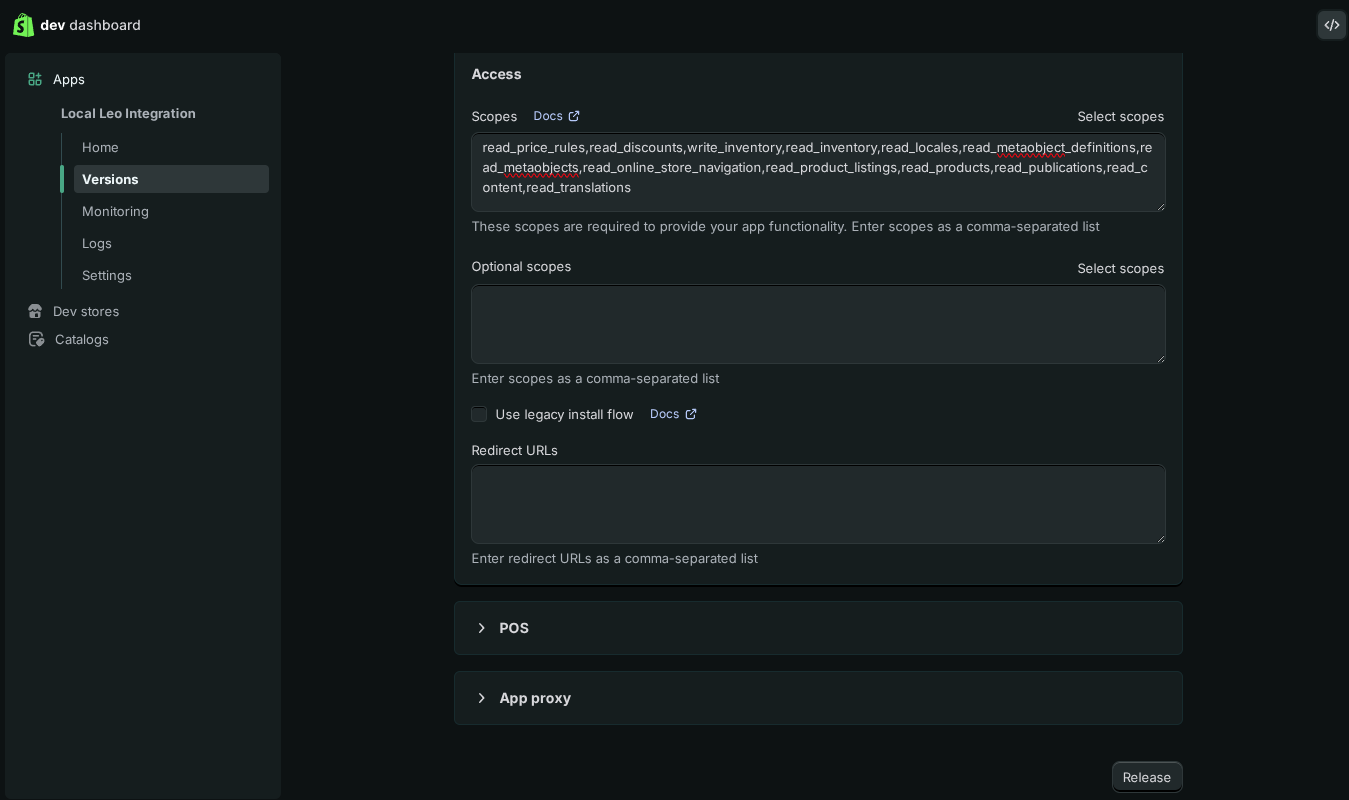 We require the following read-only scopes for these reasons:
- Discounts: `read_price_rules` and `read_discounts` - For more accurate pricing information
- Inventory: `read_inventory` and if you wish `write_inventory` - To enable us to keep stock levels updated
- Locales GraphQL Admin API: `read_locales` - For localization support
- Metaobject definitions: `read_metaobject_definitions`
- Metaobject entries: `read_metaobjects`
- Navigation API: `read_online_store_navigation` - For categories
- Product information: `read_product_listings` - To sync your product catalog
- Products: `read_products` - To sync your product catalog
- Publications: `read_publications` - To sync your product catalog
- Store content: `read_content` - For store information
- Translations: `read_translations` - For product translations
- Click "Release" to save your changes, and then "Release" again in the popup
Step 4: Install App
- Click on the "Home" tab on the left sidebar under the app that you have created
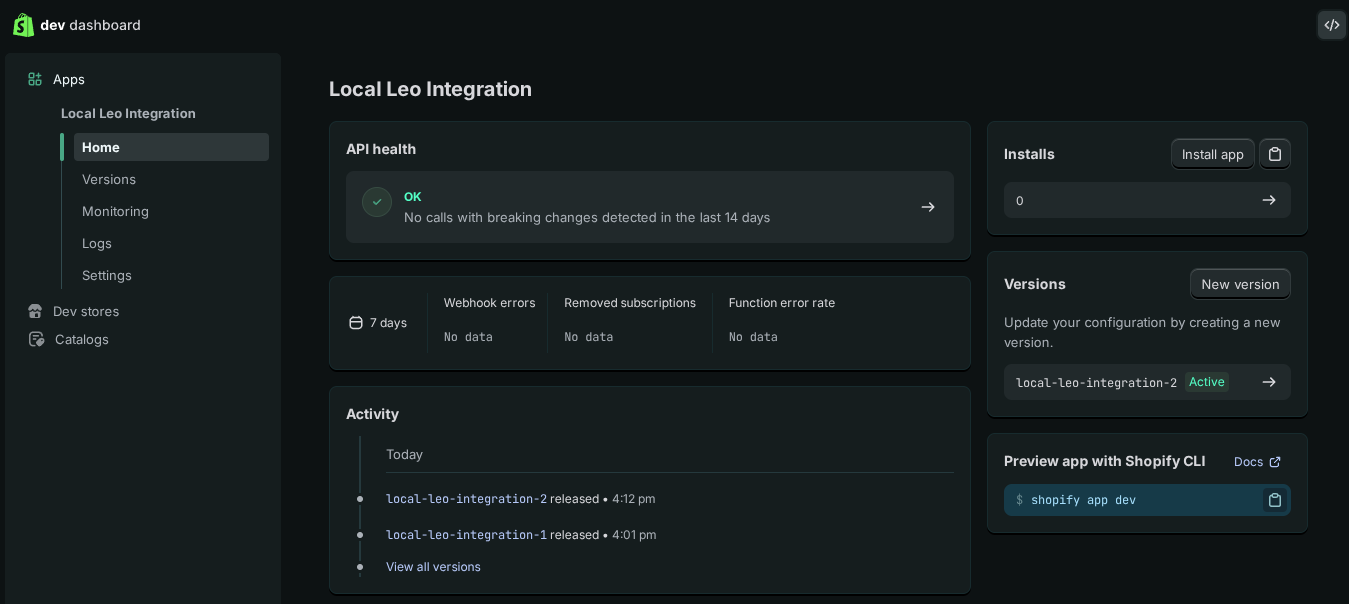
- On the right hand side click "Install app" and choose the store to install to. It should open in a new tab. Go through the next couple of pages hitting "Install" to complete the installation.
- You'll then see a page like the below to show the app successfully installed:
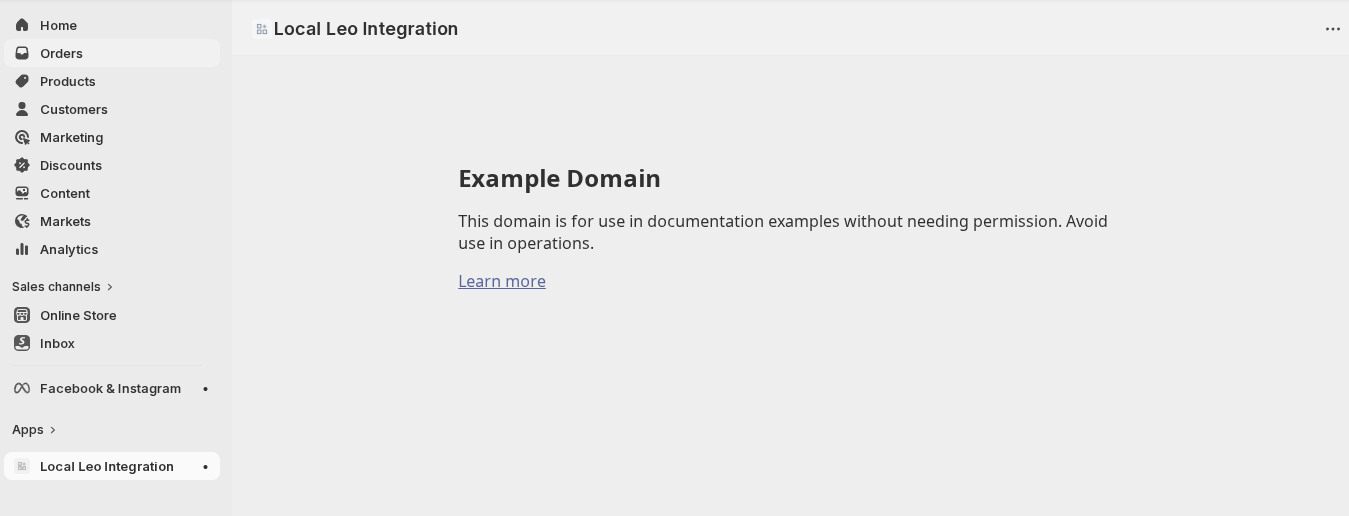
- Close this tab and the previously opened one should be the developer dashboard.
Step 5: Get credentials
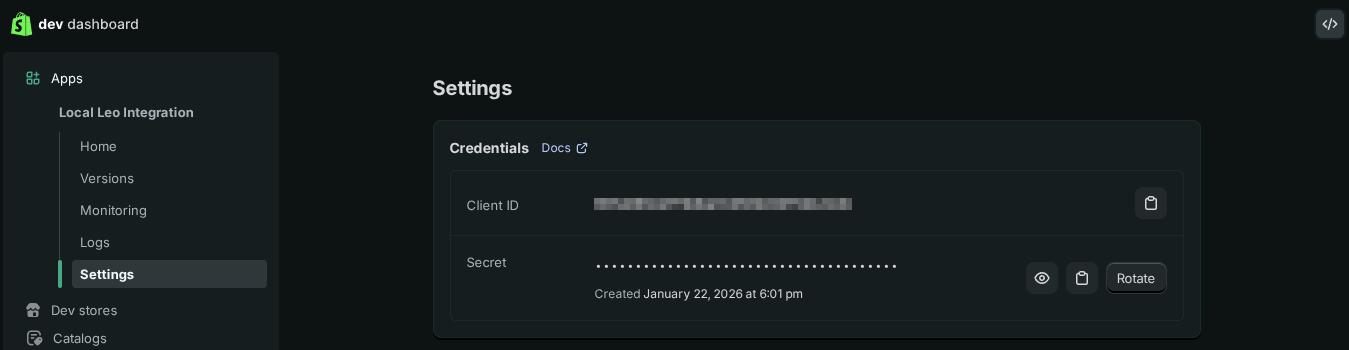
- Click on the "Settings" tab on the left sidebar under the app that you have created
- Copy the Client ID and Secret as below:
Step 6: Provide Credentials to Local Leo
Once you have your API credentials, you'll need to provide the following information to Local Leo:
- Store URL: Your admin URL in the format
https://admin.shopify.com/store/your-store-name/... - Client ID: The Client ID in step 5 above
- Secret: The Secret in step 5 above (it should begin
shpss_...)
Security Notice: Your Secret is highly sensitive. Protect it carefully and never share it publicly. Local Leo will store this securely and use it only for authorized catalog synchronization.
Additional Configuration Notes
- The integration will respect your store's existing privacy and notification settings
- You can modify or revoke API access at any time through your Shopify admin panel